Using PyTracerLab
Get PyTracerLab Running on Your Machine
This section is written for readers who have never used GitHub before and simply want the program on their computer. It describes every single click from the PyTracerLab project page to an open PyTracerLab window. No programming knowledge, no Python installation and no GitHub account are required.
Before you start, you need:
a PC running Windows 10 or Windows 11
an internet connection
about 500 MB of free disk space (the program file itself is about 91 MB, and it unpacks itself temporarily every time it runs)
roughly 5 minutes
You do not need administrator rights, and nothing is written into your Windows system folders.
Note
This route is for Windows only. If you use macOS or Linux, or if your computer is managed by an IT department that blocks programs from unknown publishers, follow Running PyTracerLab Locally instead. That guide installs PyTracerLab as a Python program and works on every operating system.
Step 1 — Open the PyTracerLab page on GitHub
Open your web browser and go to:
https://github.com/iGW-TU-Dresden/PyTracerLab
GitHub is the website where the PyTracerLab source code and the ready-to-use program are stored. The page you land on is called the repository. You do not need a GitHub account, and you do not need to sign in — everything in this guide works without an account.
The middle of the page shows a list of folders and files (docs, src/PyTracerLab, LICENSE, and
so on). You can ignore all of it. The part you need is on the right-hand side of the page.
Step 2 — Find the “Releases” box on the right
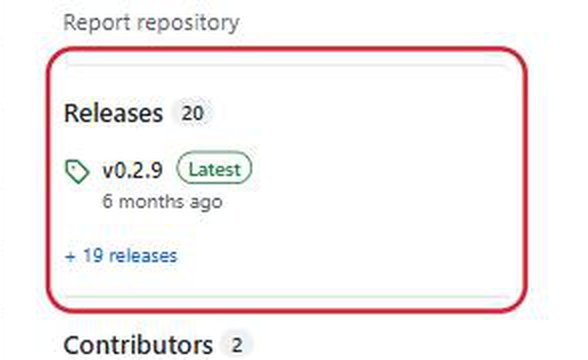
Look at the right-hand column of the page. From top to bottom it contains a section called About (with a short description of the project), and below it a section headed Releases. It is outlined in red in the picture below.
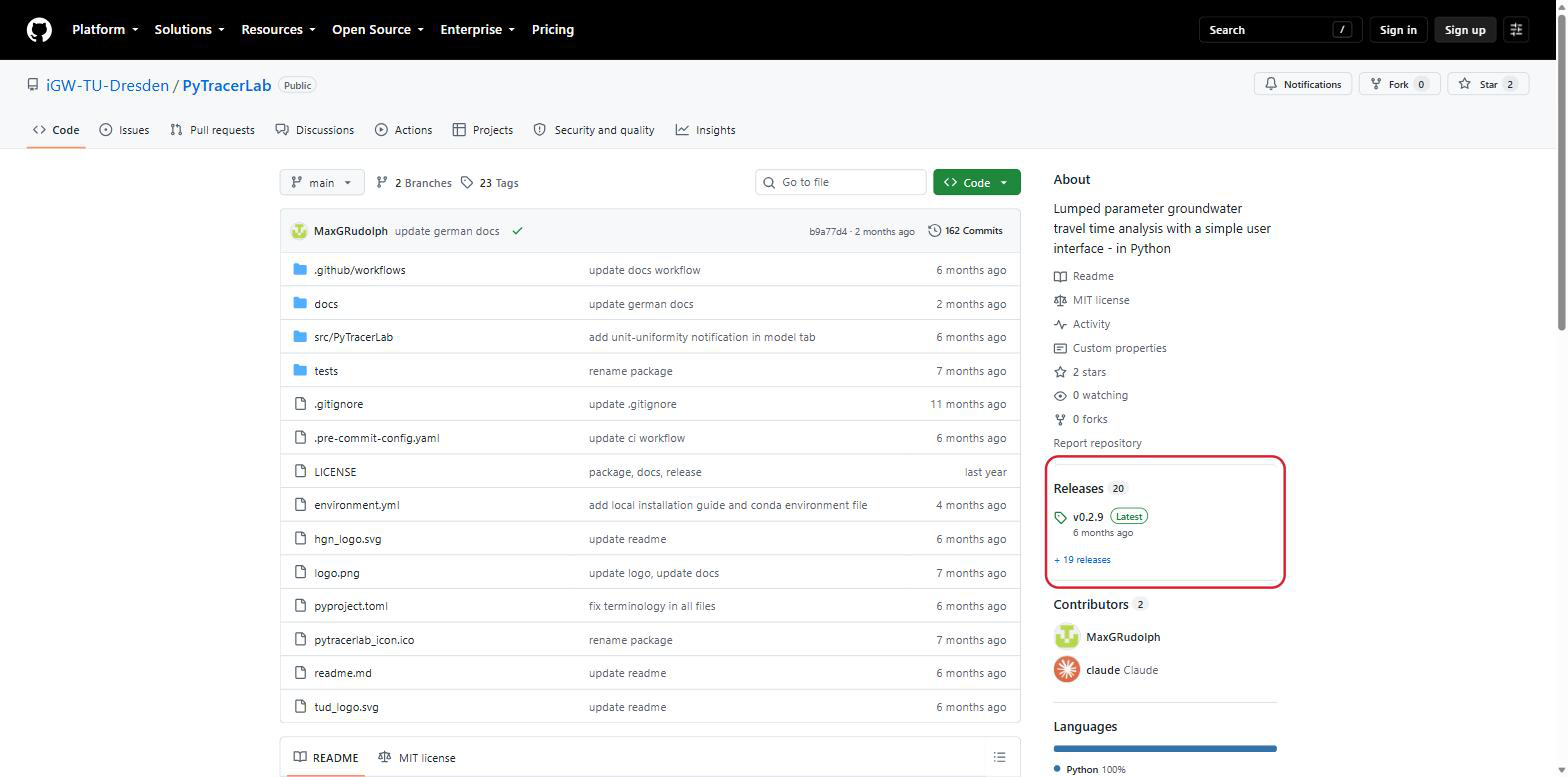
A release is a finished, packaged version of the program. The Releases box shows the newest one, marked with a green Latest label — at the time of writing that is v0.2.9. The version number you see will probably be higher, which is correct and expected.
Tip
Cannot see the Releases box? If your browser window is narrow, GitHub moves the entire right-hand column to the very bottom of the page. Either scroll all the way down, or make the browser window wider (or press the maximise button in the top-right corner of the window).
Step 3 — Open the list of releases
Inside the Releases box, click on the version number itself (for example v0.2.9), or on the blue + 19 releases link just below it. Either one takes you to the same place: the page listing all released versions.
Step 4 — Find the download files (“Assets”)
The page you are now on lists every released version, newest first. The newest version is at the top and carries the green Latest label.
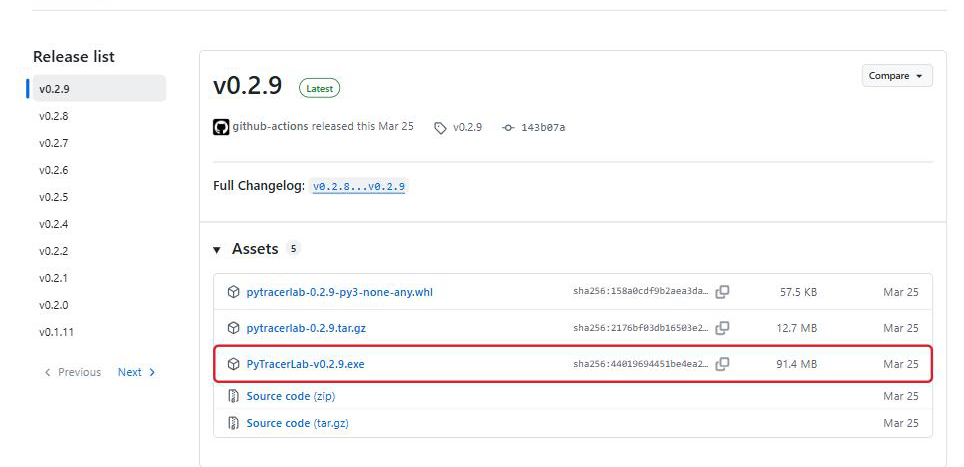
Underneath that newest version, find the heading Assets with a small number next to it. “Assets” is GitHub’s word for the files you can download for this version. The list is usually already open. If instead you only see a small triangle ▸ Assets, click on the word Assets once to unfold the list.
Step 5 — Download the right file
The Assets list contains five entries. Only one of them is the program:
File in the list |
What it is |
Do you need it? |
|---|---|---|
|
Python package |
No |
|
Python source package |
No |
|
The ready-to-use program |
Yes — this one |
|
The source code |
No |
|
The source code |
No |
Click on the file whose name ends in .exe — it is outlined in red in the picture above. The
number in the name is the version and will be higher than 0.2.9 in newer releases; always take the
.exe file, whatever its version number.
The file is about 91 MB, so the download takes a moment. Your browser will show the progress.
Step 6 — Confirm your browser’s download warning
Your browser will very likely warn you about this file, with wording such as “This file isn’t commonly downloaded” or “…was blocked because it could harm your device”.
This warning appears because the file is not digitally signed with a paid code-signing certificate. PyTracerLab is free academic software and does not have one. The warning says nothing about the contents of the file — it appears for every downloaded program without such a certificate.
To keep the file:
Google Chrome — the download appears in a small panel at the top right of the browser. Move the mouse over the entry, click the ⋮ (three dots) next to it, and choose Keep.
Microsoft Edge — same place, top right. Click the ⋯ (three dots) next to the blocked download, choose Keep, then Show more → Keep anyway.
Mozilla Firefox — click the downloads arrow in the toolbar, right-click the entry and choose Allow download.
Step 7 — Find the downloaded file on your computer
The file is now in your Downloads folder, normally:
C:\Users\<your Windows user name>\Downloads
To get there, open the File Explorer (the yellow folder icon in the taskbar, or press
Windows + E) and click Downloads in the left-hand column. You are looking for the file
PyTracerLab-v0.2.9.exe.
Important
This single file is the whole program. There is nothing to install. There will be no entry in the Start menu and no icon on the desktop. You can move the file anywhere you like — for example onto your Desktop or into a folder of your choice — and start it from there. If you delete the file, the program is gone from your computer.
Step 8 — Start the program and get past the Windows warning
Double-click the file PyTracerLab-v0.2.9.exe.
Windows will most likely show a blue window titled “Windows protected your PC” (in German: “Der Computer wurde durch Windows geschützt”). At first this window appears to offer only a single button, Don’t run (“Nicht ausführen”).
Do the following:
Click the small link More info (“Weitere Informationen”), directly under the message text.
The window expands and now shows the file name, the publisher — and a new button Run anyway (“Trotzdem ausführen”) at the bottom right.
Click Run anyway.
This warning has the same cause as the download warning in Step 6: the program is not signed with a paid certificate. You only have to confirm it the first time for each downloaded file.
Tip
You can also remove the warning beforehand: right-click the file, choose Properties, and at the bottom of the General tab tick the Unblock checkbox, then click OK.
Step 9 — Wait for the first start
Warning
Nothing will seem to happen for 10 to 40 seconds. This is normal.
The program is packed into a single file and has to unpack itself into a temporary folder before the window can appear. On the first start this takes noticeably longer than later on. There is no progress bar and no splash screen while this happens.
Do not double-click the file again during this time — that simply starts a second copy of the program. Wait until the window appears. Later starts are considerably faster.
Step 10 — The program is running
The PyTracerLab main window opens on the Input tab and looks like this:
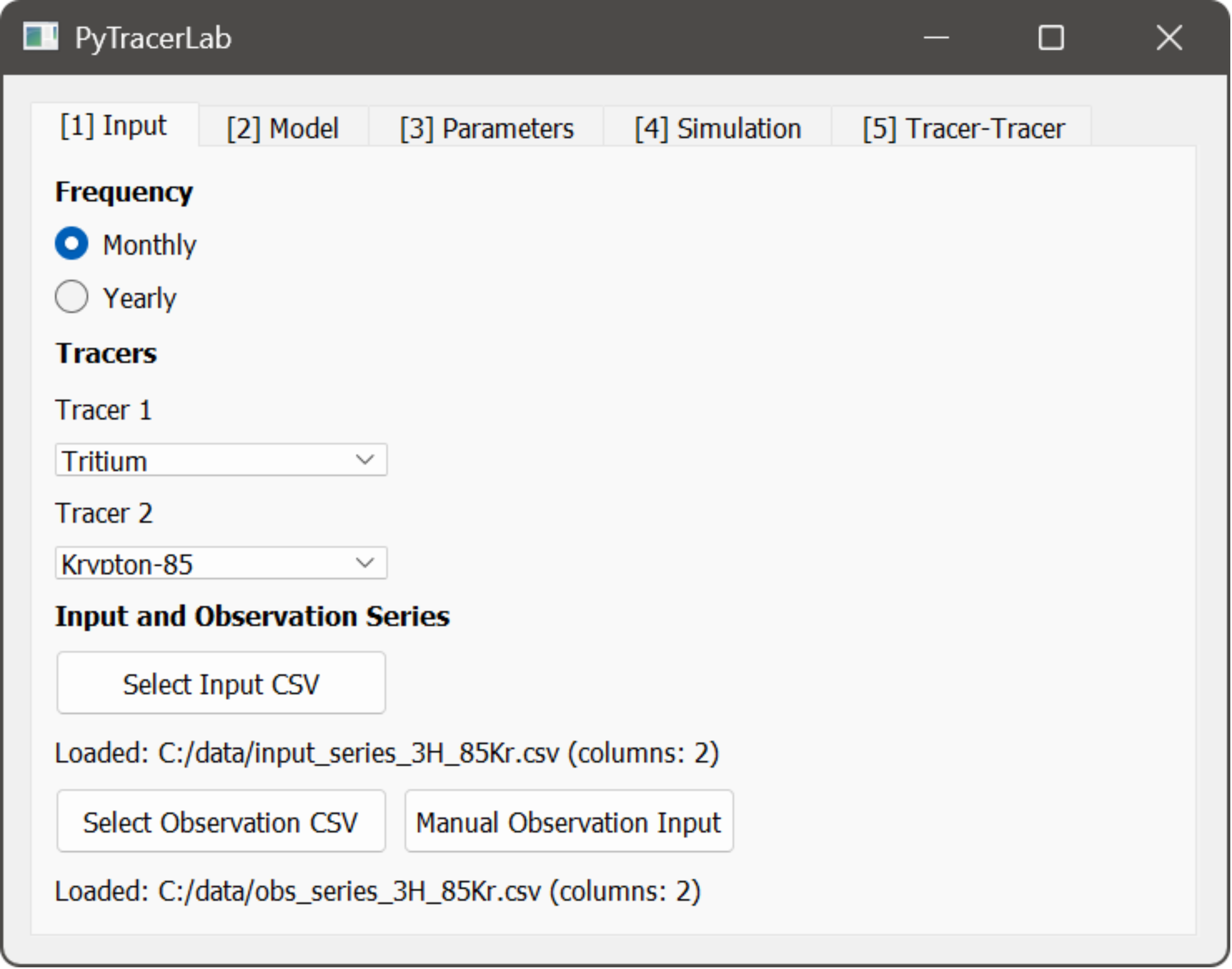
That’s it — PyTracerLab is running. Continue with The Input Tab below, which explains what to do next. If you would like to be guided through a complete analysis from beginning to end, see Using the GUI: a Detailed Example.
Starting PyTracerLab again later
There is nothing else to install. Whenever you want to use PyTracerLab again, simply double-click the
same .exe file. The Windows warning from Step 8 will not appear again for this file.
Updating to a newer version
PyTracerLab does not update itself. To move to a newer version, repeat Steps 1 to 8 — you will
get a .exe file with a higher version number. You can then delete the old file.
If something went wrong
I double-clicked the file and nothing happens.
Wait a full minute — see Step 9. If there is still no window, open the Windows Task Manager
(Ctrl + Shift + Esc) and check whether PyTracerLab is listed under Processes. If several copies
are listed, end them all and try once more with a single double-click.
The “Windows protected your PC” window has no “Run anyway” button. The button only becomes visible after you click More info — see Step 8. If your employer’s IT policy blocks unsigned programs entirely, the button may be missing altogether. In that case use Running PyTracerLab Locally instead.
The file disappeared after downloading it. Your antivirus software quarantined it. Programs packed in this way are a frequent source of false alarms. Restore the file from your antivirus program’s quarantine list, or use Running PyTracerLab Locally.
The window appears briefly and then closes immediately.
This route deliberately starts the program without a console window, so any error message is
invisible. To see what went wrong, install PyTracerLab as a Python program following
Running PyTracerLab Locally and start it with the PyTracerLab command —
that variant keeps a console window open in which the error message is shown. Please report the
message via GitHub Issues.
I am not using Windows.
The .exe file only runs on Windows. Follow Running PyTracerLab Locally,
which works on macOS and Linux as well.
Using the Graphical User Interface
In general, using the Graphical User Interface (GUI) is stricter and less versatile than using the package it is built on. Specifically, the app assumes a certain structure of time series data, is not scalable well to handle many different datasets, and offers limited post-processing functionality. Nevertheless, the GUI is a highly user-friendly option to performing analysis of groundwater travel time distributions using lumped parameter models.
Important
The GUI can only read input and observation data files that follow a specific structure: CSV files with commas as separators, a first line that is skipped as a header, a date column in the format YYYY-MM (monthly data) or YYYY (yearly data), one or two tracer columns, input and observation series of the same length, and nan for missing observations. See Preparing Datasets for a detailed description of the required file structure.
Example Files
The following example files can be downloaded and loaded directly into the GUI. They cover different use cases regarding temporal resolution and the number of tracers. When loading a file, select the temporal resolution and the tracer(s) that match the file on the Input Tab.
Input file |
Observation file |
Resolution |
Tracers |
Period |
Notes |
|---|---|---|---|---|---|
monthly |
1 |
1960-01 – 2009-12 |
|||
monthly |
2 (Tritium, Krypton-85) |
1900-01 – 1999-12 |
used in the detailed example |
||
yearly |
1 |
1850 – 2020 |
TracerLPM benchmark |
||
yearly |
2 (Tritium, SF6) |
1900 – 2020 |
SF6 is not in the GUI tracer list; select Stable tracer (no decay) for it |
||
– |
monthly |
1 |
1970-01 – 2019-12 |
no observation file; enter observations via Manual Observation Input |
|
– |
monthly |
1 |
1960-01 – 1969-12 |
pulse input for inspecting the model response |
|
– |
yearly |
1 |
1960 – 1969 |
pulse input for inspecting the model response |
Structure of the GUI
The GUI is structured into different Tabs. Those Tabs represent the typical workflow and should be considered in their present order. The individual Tabs are described in more detail below.
Warning
PyTracerLab is still under active development. While the general functionality is well-tested, the GUI still poses some issues that we’re actively working on.
Warning
PyTracerLab does not support any pre-processing steps of input data at the moment. Precipitation weighting, gas exchange, etc. have to be performed by the user beforehand.
Tip
To avoid issues when using the GUI, please perform all steps on all tabs in the order they are shown on the tab. For example, on the input tab, first specify the temporal resolution, then specify the tracer(s), then load corresponding input data, then load corresponding observation data.
1. The Input Tab
In this Tab, datasets are loaded and the most basic settings for subsequent modelling are made.
select temporal resolution (yearly or monthly data in time series and model simulations)
select one or two tracers to be considered in the analysis ($^3\mathrm{H}$ or $^14\mathrm{C}$)
select and load tracer input time series file using the file dialog that opens up; see here for details on how to prepare tracer input time series files
select and load tracer observation time series file using the file dialog that opens up; see here for details on how to prepare tracer observation time series files
Important
The same units of tracer concentration should be used in both the tracer input data and the observation data. Units are not checked internally. If units are not equal, unwanted and wrong results are obtained!
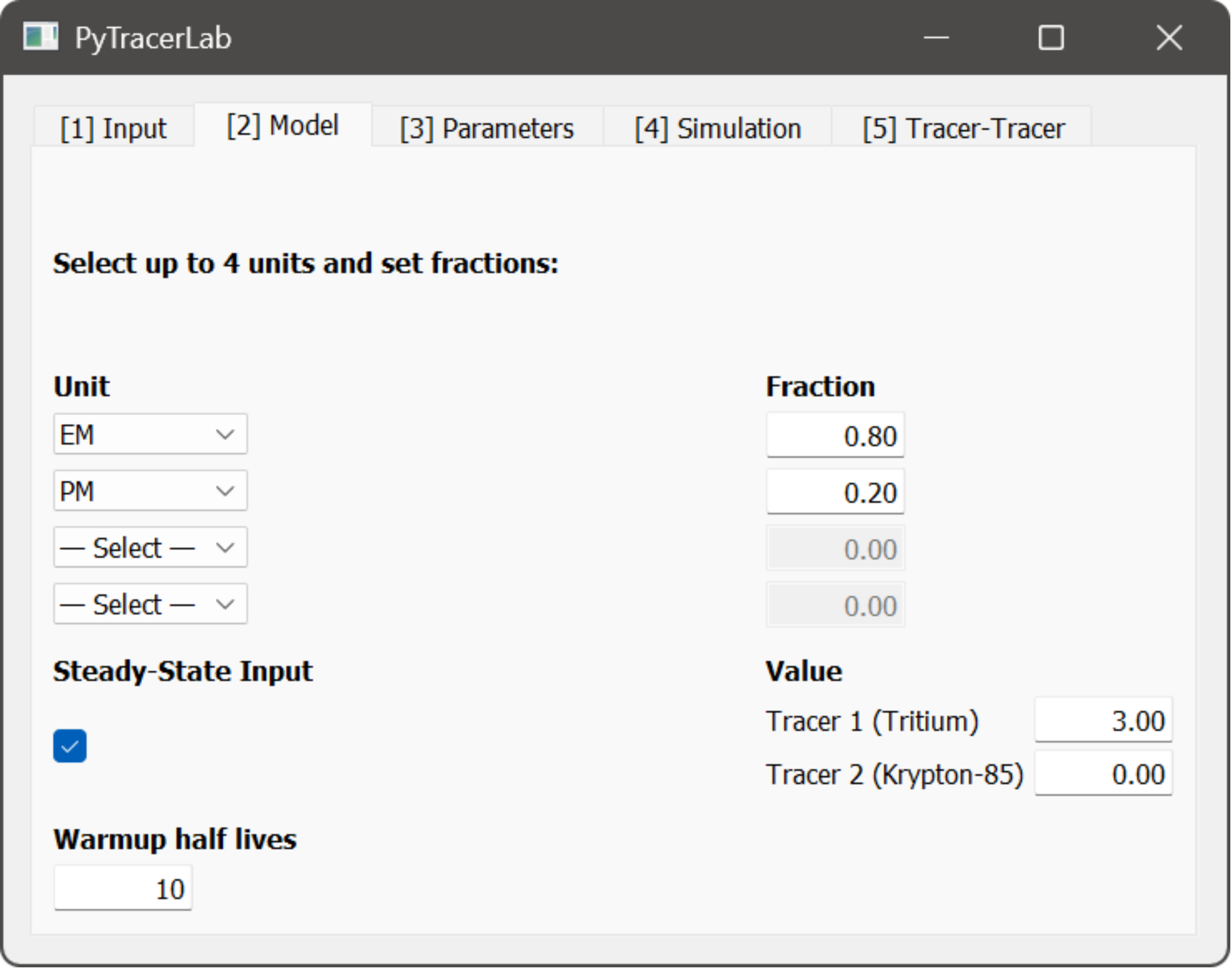
2. The Model Tab
Warning
Lumped parameter model structure should always be based on a conceptual understanding of the groundwater flow system under study. There is a lot of literature on this topic. If you have never heard of things like “Exponential Model”, “Binary Mixing Model”, or “Convolution Integral”, you should read up on those topics before continuing. Lumped parameter models are easy to use but hard to master - corresponding modelling results should always be carefully interpreted before drawing any conclusion.
In this Tab, the different model parts are selected that are included in the simulations.
select up to 4 model units to be used in parallel
available units:
Piston-Flow Model (PM)
Exponential Model (EM)
Exponential Piston-Flow Model (EPM)
Dispersion Model (DM)
each unit is associated with a corresponding fraction of the total system response or output; the fractions of all active units need to sum to units, otherwise an error is raised, and the model will not run
specify if there is a steady state tracer input that should be considered for the time prior to the start of the datasets
specify the warmup time span
this prepends the steady state tracer input for the time of the number of tracer half lives specified here
model warmup helps to remove unwanted irregularities that can appear in early phases of simulations; see here for more details
in the case of two tracers, the longer of the two half lives is used
Important
The steady state input value is interpreted in the same units that are used in the tracer input and observation datasets. Units are not checked internally. If units are not equal, unwanted and wrong results are obtained!
3. The Parameters Tab
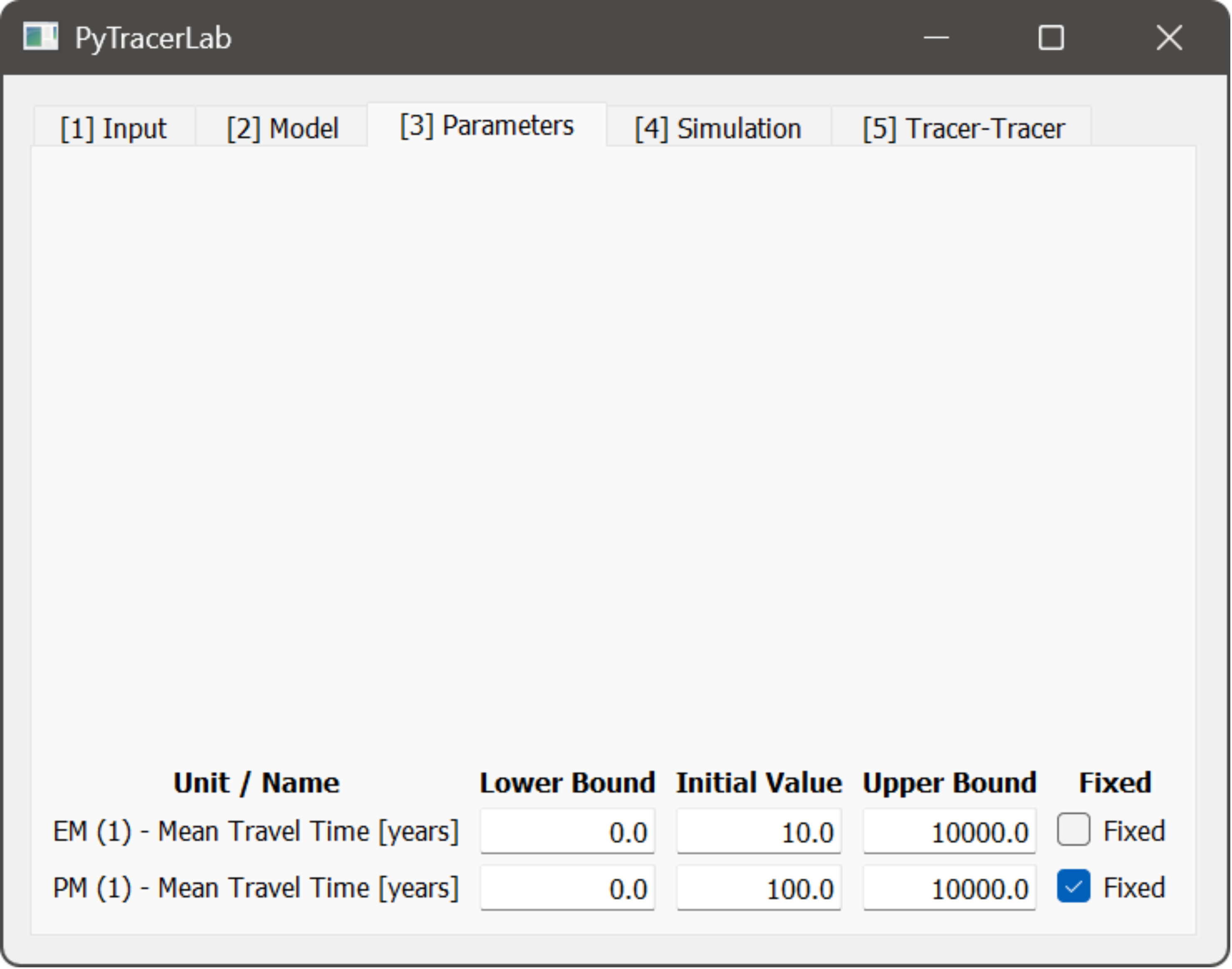
In this Tab, settings are made regarding model parameters, how they are bounded during calibration, and what current values they take.
specify the lower bound, current value, upper bound, and calibration status for all model parameters; different model parameters are organized in rows
the value that is specified for a parameter will be used as its value for simple simulation and as the initial value for calibration
parameters that are set to fixed remain at their specified value during calibration
Important
Parameter time units are always in years. Half lives are internally converted but other parameters having time units are interpreted in months.
4. The Simulation Tab
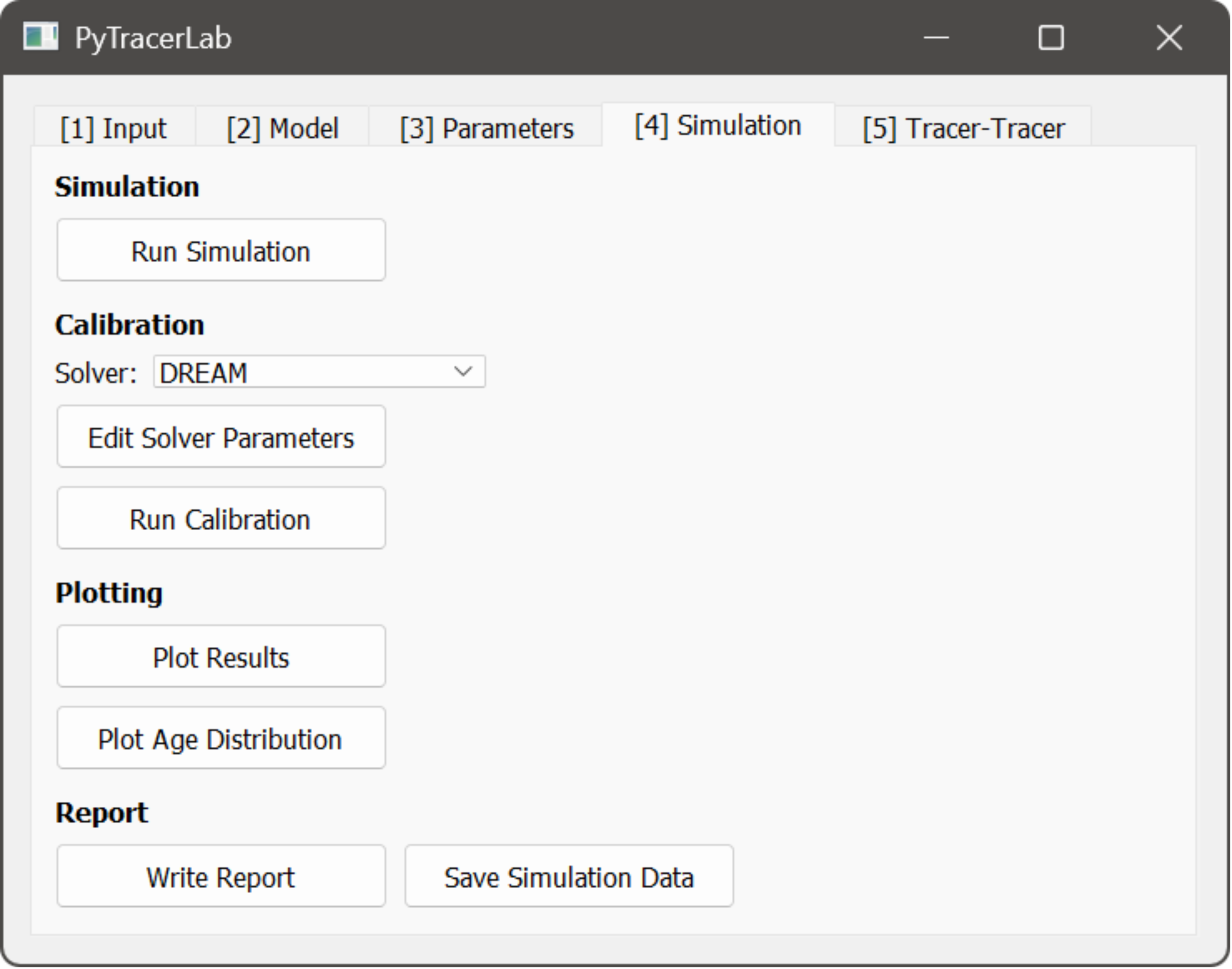
In this Tab, simulations can be performed, model parameters can be calibrated automatically, results can be plotted, and reports can be generated.
perform a model simulation using the current parameters
perform model calibration
select a solver
change solver parameters (requires at lease a basic understanding of the solvers)
run automatic calibration
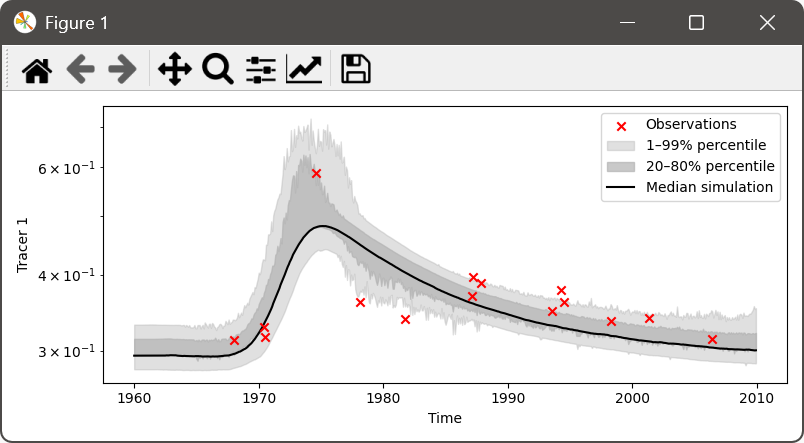
plot results of current simulation / calibrated model simulation
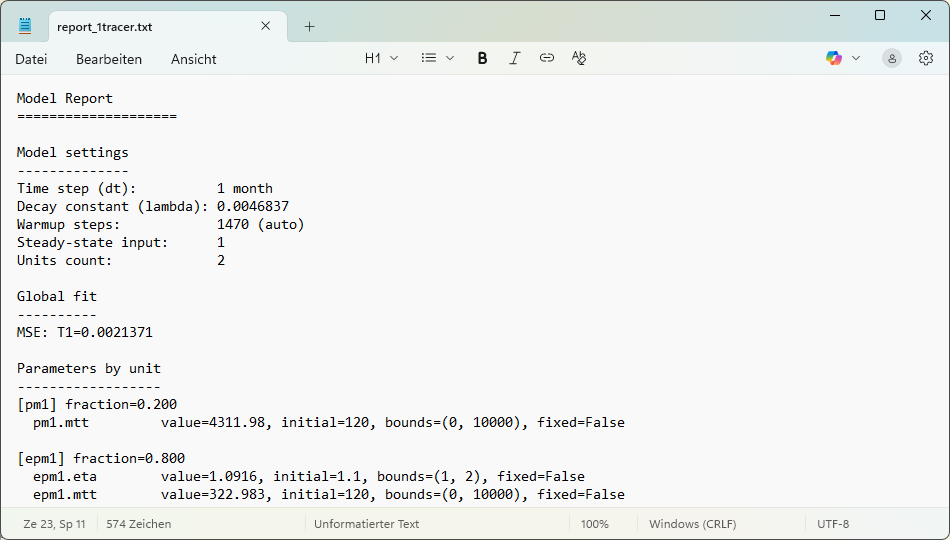
write a report including the calibrated parameters, error metrics, and other model details to a text file; uses a file dialog to store the report file
Tip
All plots that PyTracerLab generates can be interactively adapted in the plot-view. See the (matplotlib documentation)[https://matplotlib.org/stable/users/explain/figure/interactive.html] for more details on how to change plot appearance.
Preparing Datasets
Datasets need to be prepared in a specific way in order for the app to be able to read the data. Files always have to be CSVs. The tracer input and observation time series data has to be of the same length. Time stamps which are present in the tracer input series but for which no observation is available have to be marked as missing values (see below). It is assumed that the time series do not have gaps and are processed accordingly before use in PyTracerLab. Complete example files that follow this structure can be downloaded in Example Files.
Below, instead of “# Date, CTracer” or “# Date, CTracer1, CTracer2”, any other description can be used. The first line in the file is skipped when reading!
Montly Data
A Single Tracer
Monthly tracer input series should have the following format if a single tracer is considered:
# Date, CTracer
1996-01, 1.03
1996-02, 2.12
1996-03, 0.08
...
2009-11, 0.05
Monthly tracer observation series should have the following format if a single tracer is considered (“nan” if no observation is available at that time stamp):
# Date, CTracer
1996-01, nan
1996-02, 0.17
1996-03, nan
...
2009-11, nan
Two Tracers
Monthly tracer input series should have the following format if two tracers are considered:
# Date, CTracer1, CTracer2
1996-01, 1.03, 0.01
1996-02, 2.12, 0.06
1996-03, 0.08, 0.02
...
2009-11, 0.05, 1.25
Monthly tracer observation series should have the following format if two tracers are considered (“nan” if no observation is available at that time stamp):
# Date, CTracer1, CTracer2
1996-01, nan, nan
1996-02, 1.14, 0.01
1996-03, nan, nan
1996-04, 1.17, nan
1996-05, nan, 0.05
...
2009-11, nan, nan
Yearly Data
A Single Tracer
Yearly tracer input series should have the following format if a single tracer is considered:
# Date, CTracer
1996, 1.03
1997, 2.12
1998, 0.08
...
2009, 0.05
Yearly tracer observation series should have the following format if a single tracer is considered (“nan” if no observation is available at that time stamp):
# Date, CTracer
1996, nan
1997, 0.17
1998, nan
...
2009, nan
Two Tracers
Yearly tracer input series should have the following format if two tracers are considered:
# Date, CTracer1, CTracer2
1996, 1.03, 0.01
1997, 2.12, 0.06
1998, 0.08, 0.02
...
2009, 0.05, 1.25
Yearly tracer observation series should have the following format if two tracers are considered (“nan” if no observation is available at that time stamp):
# Date, CTracer1, CTracer2
1996, nan, nan
1997, 1.14, 0.01
1998, nan, nan
1998, 1.16, nan
1998, nan, 0.06
...
2009, nan, nan